


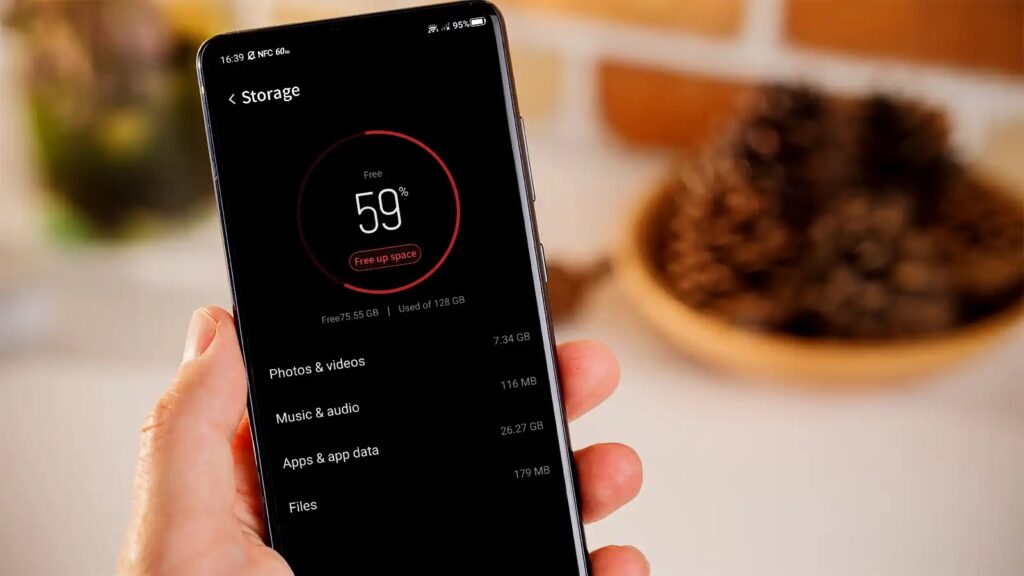
The fastest way to free up phone storage is to find what is using the most space, then delete or offload unused apps, back up and remove large photos and videos, and clear app caches and downloads. Most phones can recover several gigabytes in under fifteen minutes.
This guide works for both Android and iPhone and shows you exactly where to look.
Step 1: Check What Is Taking Up Space
On iPhone: Go to Settings > General > iPhone Storage. You will see a colored bar and a list of apps sorted by size, with suggestions from Apple.
On Android: Go to Settings > Storage (or Battery and device care > Storage on Samsung). Tap a category such as Images, Videos, Apps or Files to see what is using space.
Always start with the biggest items. Deleting one large app or video folder often frees more space than clearing dozens of small files.
Step 2: Back Up and Delete Photos and Videos
Photos and videos are usually the biggest storage hogs.
- Back them up to Google Photos, iCloud Photos or a computer first.
- After confirming the backup finished, delete the local copies.
- On iPhone, turn on Optimize iPhone Storage in Photos settings to keep smaller versions on the phone.
- In Google Photos, use Free up space to remove copies already backed up.
- Delete screenshots, blurry shots, duplicates and old screen recordings.
- Empty Recently Deleted (iPhone) or Trash (Android), since deleted files may still take space for weeks.
Step 3: Remove or Offload Unused Apps
Apps and their data can take many gigabytes.
- Delete apps you have not opened in months.
- On iPhone, use Offload Unused Apps to remove the app but keep its data, so you can reinstall it later.
- On Android, open Play Store > Manage apps & device and sort by size or last used.
- Check big apps such as social media, games and streaming apps, which can grow very large over time.
Step 4: Clear App Cache and Data
Cached files speed up apps, but they build up.
On Android: Go to Settings > Apps, choose an app, tap Storage, then Clear cache. Avoid Clear data unless you want to reset the app and lose its saved information.
On iPhone: There is no system-wide cache clearing button. For Safari, go to Settings > Safari > Clear History and Website Data. For apps with large caches, such as social apps, offloading or reinstalling them clears the cache.
Step 5: Clean Up Messaging Apps
Chat apps quietly store photos, videos, voice notes and documents.
- In WhatsApp, open Settings > Storage and data > Manage storage to review large files and delete them in bulk.
- Turn off auto-download of media for groups.
- Delete old chat attachments you no longer need.
- In iMessage, check Settings > General > iPhone Storage > Messages to review large attachments.
Step 6: Delete Downloads and Offline Content
- Open your Downloads folder (Files app on iPhone, Files by Google or My Files on Android) and delete old PDFs, installers and videos.
- Remove offline downloads from streaming apps like Spotify, YouTube and Netflix.
- Delete offline maps you no longer need.
- Remove old podcasts and audiobooks you have already finished.
Step 7: Move Files to the Cloud or an SD Card
- Use Google Drive, iCloud Drive or another cloud service for documents and large files.
- Many Android phones support microSD cards. Move photos, videos and music to the card to free internal storage.
- An external drive or computer works for long-term archives.
Quick Reference: Where the Space Usually Goes
| Space hog | Typical fix |
|---|---|
| Photos and videos | Back up, then delete local copies |
| Games and social apps | Uninstall or offload |
| Chat app media | Delete from storage settings |
| Cache files | Clear in app settings (Android) |
| Downloads | Delete old files |
| Offline music and video | Remove downloads |
Prevent Storage From Filling Up Again
- Review storage once a month.
- Keep automatic backup on so photos are safe before you delete them.
- Set messaging apps to stop auto-saving media.
- Choose streaming over downloading when you have good internet.
- Think about upgrading to a phone or plan with more storage if you shoot lots of 4K video.
Frequently Asked Questions
Why does my phone say storage is full when I have few files?
The “System” or “Other” category, including cache, system files and temporary data, can grow large. Restarting, clearing cache and updating the software often reduces it.
Is it safe to clear cache?
Yes. Cache files are temporary and apps rebuild them. The first launch afterward may be slightly slower.
Will deleting an app delete my data?
Usually yes, unless the app syncs to the cloud. On iPhone, offloading keeps the data. Back up important information before deleting.
How much free space should I keep?
Try to keep at least 10% to 15% of your storage free. Phones can slow down and fail to update when space runs very low.
Does a factory reset free up storage?
It does, but it erases everything. Use it only as a last resort, after backing up your data.
Final Thoughts
Start with photos, videos and unused apps, since they usually deliver the biggest gains. A short monthly cleanup keeps your phone fast and ready for updates.