

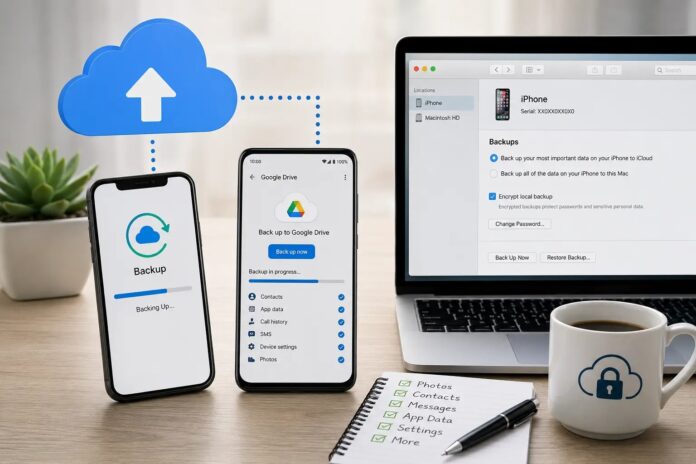
Backing up your phone takes about ten minutes and protects your photos, contacts, messages and app data if the phone is lost, stolen or broken. The safest method is a cloud backup that runs automatically, plus an occasional copy on a computer or external drive.
Most people only think about backups after losing a phone. This guide shows you how to do it on both Android and iPhone, step by step.
Why Backing Up Your Phone Matters
Your phone holds years of photos, chats, contacts, two-factor login codes and documents. Phones get dropped, stolen, water-damaged or hit by software failures. A fresh backup lets you restore everything to a new device in minutes instead of starting over.
What You Should Back Up
- Photos and videos
- Contacts and calendar
- Text messages and call history
- App data and settings
- Documents and downloads
- Chat history (WhatsApp, Telegram and similar apps have their own backup options)
How to Back Up an iPhone
Option 1: iCloud backup (automatic)
- Connect to Wi-Fi.
- Open Settings, tap your name, then tap iCloud.
- Tap iCloud Backup and turn on Back Up This iPhone.
- Tap Back Up Now for an immediate copy.
Once on, the iPhone backs up daily when it is locked, charging and connected to Wi-Fi. Apple gives you 5 GB of free iCloud storage, which fills up quickly if you have many photos. Paid plans start at a low monthly price.
Option 2: Back up to a computer
- Connect the iPhone to your Mac or Windows PC with a cable.
- On a Mac, open Finder and select the iPhone. On Windows, use the Apple Devices app or iTunes.
- Choose Back Up Now.
- Tick Encrypt local backup if you also want saved passwords and health data included.
A computer backup is free apart from disk space and works without internet.
How to Back Up an Android Phone
Android menus vary by brand, but the steps are similar on Samsung, Xiaomi, Oppo, Pixel and others.
Option 1: Google backup
- Open Settings and go to Google (or search “Backup”).
- Tap Backup and turn on Backup by Google One.
- Tap Back up now.
This covers app data, contacts, call history, device settings and SMS. Google accounts include 15 GB of free storage shared across Gmail, Drive and Photos.
Option 2: Back up photos with Google Photos
- Open the Google Photos app and tap your profile picture.
- Select Photos settings, then Backup.
- Turn on Backup.
Option 3: Manufacturer tools
Samsung users can use Samsung Cloud or Smart Switch. Other brands offer similar tools in their settings. These can capture home screen layouts and brand-specific settings Google’s backup may miss.
Option 4: Copy files to a computer
Connect the phone by USB, choose File transfer on the phone, and drag the DCIM (photos) and Downloads folders to your computer.
Cloud Backup vs Computer Backup
| Method | Cost | Needs internet | Best for |
|---|---|---|---|
| iCloud / Google One | Free tier, then paid | Yes | Automatic daily protection |
| Computer backup | Free | No | Full copy and large files |
| External drive or SD card | One-time hardware cost | No | Extra safety copy |
Best Practices for a Reliable Backup
- Follow the 3-2-1 rule: three copies of your data, on two types of storage, with one copy off-site (the cloud).
- Back up at least weekly, and always before a software update or factory reset.
- Check that the latest backup date is recent. A backup that stopped months ago is not protecting you.
- Back up WhatsApp separately in its own Chat Backup settings.
- Keep your backup account password safe, and turn on two-factor authentication.
How to Restore From a Backup
On a new iPhone, choose Restore from iCloud Backup (or from Mac or PC) during setup. On a new Android phone, sign in with your Google account during setup and pick your most recent backup when asked. Make sure the new phone is charged and on Wi-Fi, since restoring can take from several minutes to an hour.
Frequently Asked Questions
How often should I back up my phone?
Automatic daily cloud backup is ideal. If you rely on manual backups, do one at least once a week.
Does a backup include everything on my phone?
Not always. Most backups include photos, contacts, settings and app data, but some apps keep their data separate. Check WhatsApp, banking apps and authenticator apps individually.
How much storage do I need for a backup?
A typical backup uses between 5 GB and 50 GB, depending on photos and videos. Check your current usage under your phone’s storage settings.
Can I back up my phone without Wi-Fi?
Yes. Use a USB cable to copy your data to a computer, or use an external drive or SD card where supported.
What happens if I lose my phone before backing up?
You may lose data that was never synced. Photos and contacts already synced to iCloud or Google are usually recoverable, which is why turning on automatic backup today matters.
Final Thoughts
Turn on automatic cloud backup first, then add a computer copy every month or so. Those two steps cover almost every way you could lose your data.
